The election lasted for two weeks and it ended last night at 23h59 UTC. The results were published today at mid-day (for me).
The complete election results are:
Axel Braun — 142 votes
Gertjan Lettink — 134 votes
Neal Gompa — 131 votes
Maurizio Galli — 103 votes
Nathan Wolf — 59 votes
Five votes were recorded for the "none of the above" option. Out of 518 eligible voters, 229 voters have cast their vote in this election, which represents a turnout of 44%. It's a low turnout compared to last year's board election which was 56%.
Axel, Gertjan and Neal are elected to serve for two years on the openSUSE Board.
The election lasted for two weeks and it ended last night at 23h59 UTC. The results were published today at mid-day (for me).
The complete election results are:
Axel Braun — 142 votes
Gertjan Lettink — 134 votes
Neal Gompa — 131 votes
Maurizio Galli — 103 votes
Nathan Wolf — 59 votes
Five votes were recorded for the "none of the above" option. Out of 518 eligible voters, 229 voters have cast their vote in this election, which represents a turnout of 44%. It's a low turnout compared to last year's board election which was 56%.
Axel, Gertjan and Neal are elected to serve for two years on the openSUSE Board.
Last week, Chittesh and I were discussing about Ubuntu 20.10 and we shared how things are effortless and boring. I installed Ubuntu on my personal laptop the previous week-end. I was indeed impressed by the out-of-the-box experience with the drivers and codecs.
For a long time I had forgotten that Ubuntu has the tendency to keep things as "human" as possible; and therefore adhering to their motto, "Linux for human beings!"
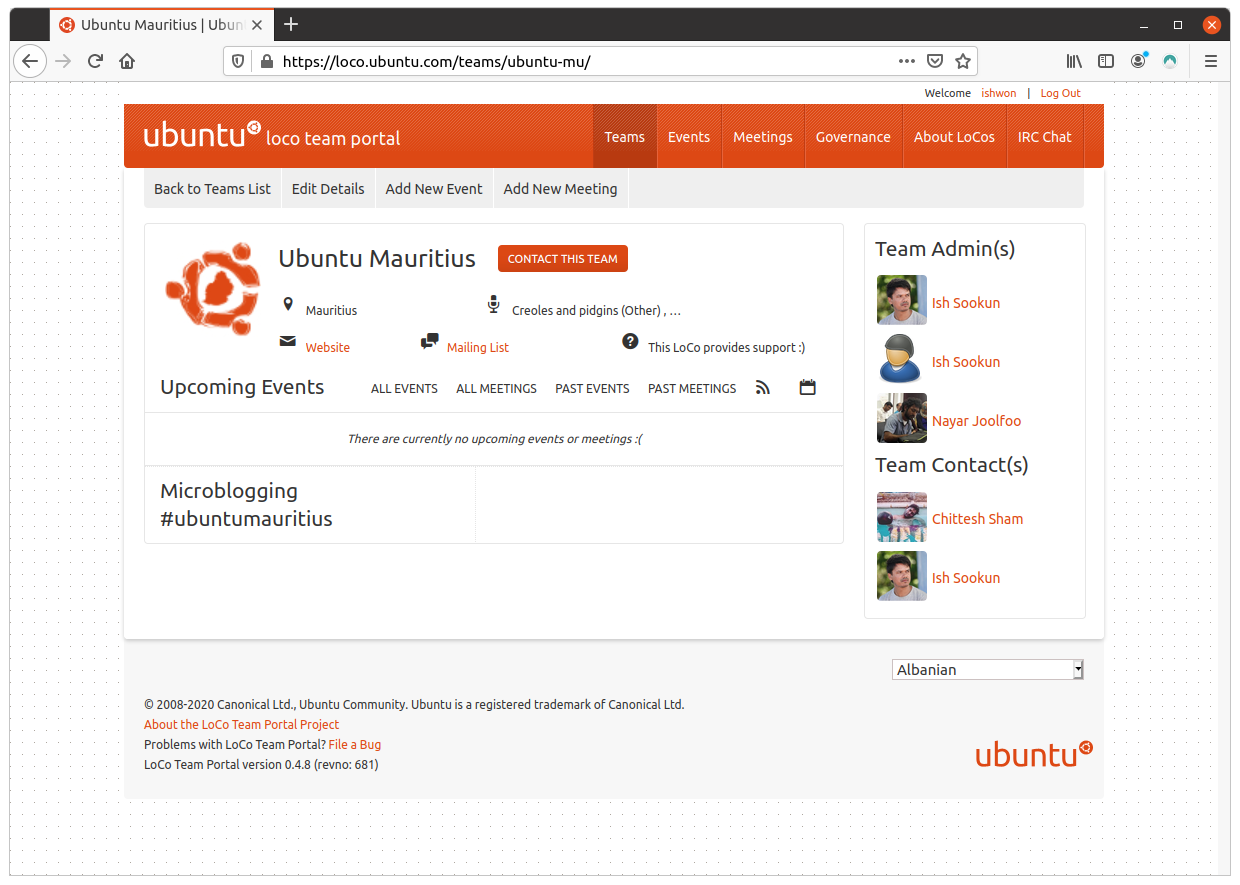
Out of the discussion, we then decided we will put some energy into the dormant Ubuntu Mauritius LoCo Team. The latter was created in 2011 and we organised a few events around those years, such as the Ubuntu Global Jam and Installation Festivals. Later on, I continued to focus on my experiments with openSUSE and spent less time at the Ubuntu activities.
In 2021, we are going to sort out a few things and make the Ubuntu Mauritius group active again. Chittesh has agreed to take on the reign. He is already the team's go-to person. Expect to see more purple desktops next year!
Last week, Chittesh and I were discussing about Ubuntu 20.10 and we shared how things are effortless and boring. I installed Ubuntu on my personal laptop the previous week-end. I was indeed impressed by the out-of-the-box experience with the drivers and codecs.
For a long time I had forgotten that Ubuntu has the tendency to keep things as "human" as possible; and therefore adhering to their motto, "Linux for human beings!"
Out of the discussion, we then decided we will put some energy into the dormant Ubuntu Mauritius LoCo Team. The latter was created in 2011 and we organised a few events around those years, such as the Ubuntu Global Jam and Installation Festivals. Later on, I continued to focus on my experiments with openSUSE and spent less time at the Ubuntu activities.
In 2021, we are going to sort out a few things and make the Ubuntu Mauritius group active again. Chittesh has agreed to take on the reign. He is already the team's go-to person. Expect to see more purple desktops next year!
The Call for Speakers for the Developers Conference 2021 has been announced. Yes, DevCon 2021 is knocking at the doors already. Preparations have begun and if you would like to be a speaker at the most awaited tech conference in Mauritius, then head to sessionize.com and submit your proposal.
Save the dates
DevCon 2021 is scheduled for the 18, 19 & 20 March 2021 (if all is well in the country).
We are keeping fingers crossed that the pandemic does not worsen globally, that our friends from outside Mauritius are able to come attend, present and participate in good health, and that the COVID-19 situation on the island remains under control, so that there aren't any restriction on public gathering. All that said, we know we should continue the usual hygiene practices and apply proper social distancing measures if we are in a group of strangers.
Tips for submitting presentation proposals
Provide a clear and concise presentation title
Provide a proper description to give the attendees an idea on what they could learn or may gain from your presentation
Specify the difficulty level
If you intend to do demos and would like the audience to participate using their devices (e.g laptops/mobile phones) please specify the same in your description
Leave notes for the organisers if you require any specific material
Put a proper profile picture so that people may recognize you
Don't use fancy nicknames
A short bio about your work and other activities would be very helpful
You can submit several presentation proposals but please be reasonable, don't spam! 😉
The Call for Speakers for the Developers Conference 2021 has been announced. Yes, DevCon 2021 is knocking at the doors already. Preparations have begun and if you would like to be a speaker at the most awaited tech conference in Mauritius, then head to sessionize.com and submit your proposal.
Save the dates
DevCon 2021 is scheduled for the 18, 19 & 20 March 2021 (if all is well in the country).
We are keeping fingers crossed that the pandemic does not worsen globally, that our friends from outside Mauritius are able to come attend, present and participate in good health, and that the COVID-19 situation on the island remains under control, so that there aren't any restriction on public gathering. All that said, we know we should continue the usual hygiene practices and apply proper social distancing measures if we are in a group of strangers.
Tips for submitting presentation proposals
Provide a clear and concise presentation title
Provide a proper description to give the attendees an idea on what they could learn or may gain from your presentation
Specify the difficulty level
If you intend to do demos and would like the audience to participate using their devices (e.g laptops/mobile phones) please specify the same in your description
Leave notes for the organisers if you require any specific material
Put a proper profile picture so that people may recognize you
Don't use fancy nicknames
A short bio about your work and other activities would be very helpful
You can submit several presentation proposals but please be reasonable, don't spam! 😉
Yes, but this time, it is the regular board election that is happening. The previous elections that were conducted during the past year were due to ad-hoc and unforeseen circumstances. However, as per the regular election cycle, we have three seats that are going to be vacant on the openSUSE Board in December. They are the seats of Axel Braun, Marina Latini and Stasiek Michalski. Note that Stasiek was elected this year to replace Christian Boltz whose term ends in 2020. However, Stasiek is opting out from this election due to personal commitments.
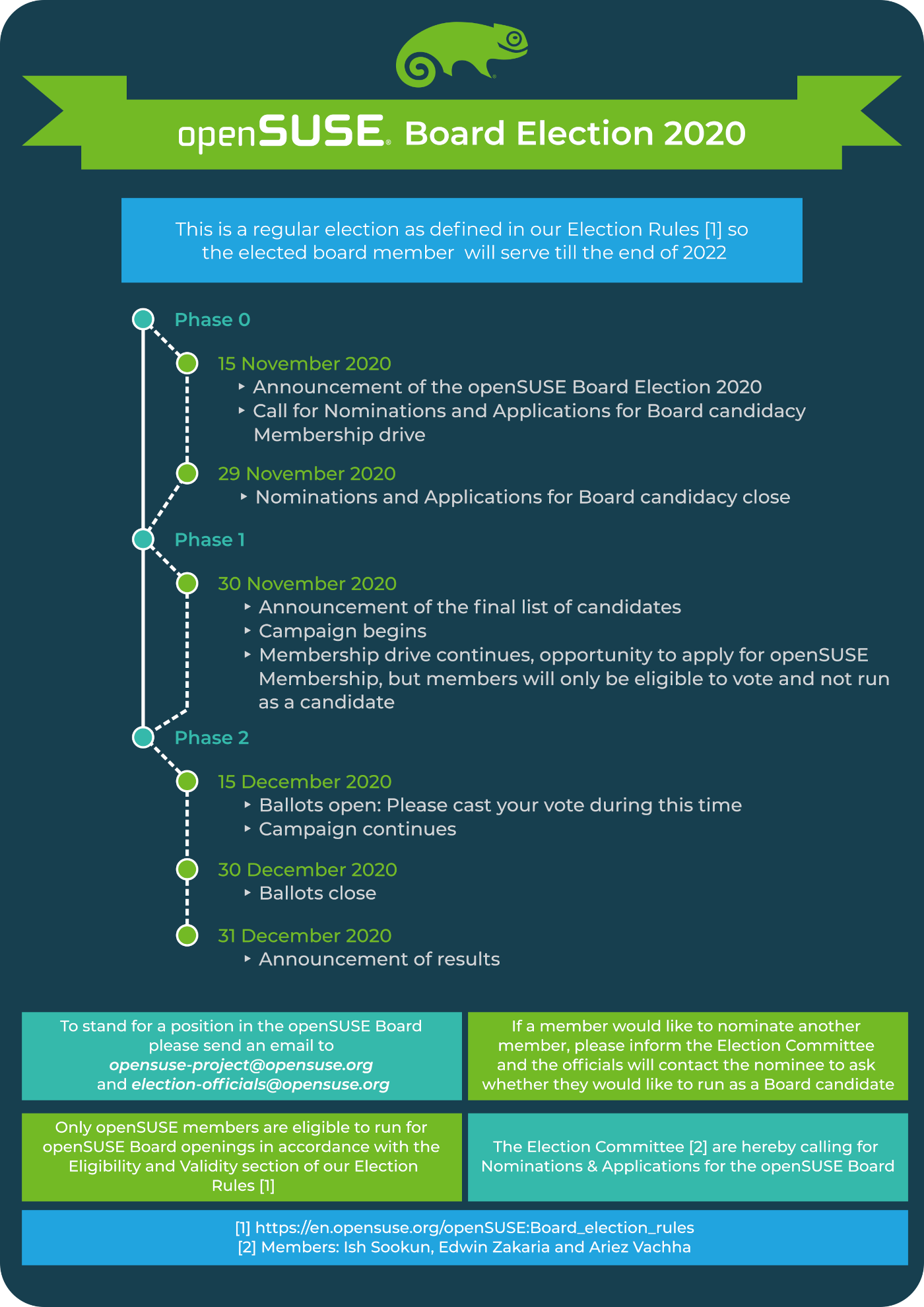
My friend from the Election Committee, Ariez Vachha, made the election announcement on the project mailing list yesterday. The election wiki page has been updated accordingly, which includes the usual election schedule poster. That's courtesy of our friends from the openSUSE Indonesia community.
At the time of writing this blog post, that is less than 24 hours since the announcement of the election was made, we received emails from three members who wish to stand as candidate in this election. It's a very good start.
The call for nominations and applications will continue until Sunday 29th of November. If you would like to nominate a member from the openSUSE community, please send us an email, [email protected]. We will be glad to inform the member about his/her nomination.
Yes, but this time, it is the regular board election that is happening. The previous elections that were conducted during the past year were due to ad-hoc and unforeseen circumstances. However, as per the regular election cycle, we have three seats that are going to be vacant on the openSUSE Board in December. They are the seats of Axel Braun, Marina Latini and Stasiek Michalski. Note that Stasiek was elected this year to replace Christian Boltz whose term ends in 2020. However, Stasiek is opting out from this election due to personal commitments.
My friend from the Election Committee, Ariez Vachha, made the election announcement on the project mailing list yesterday. The election wiki page has been updated accordingly, which includes the usual election schedule poster. That's courtesy of our friends from the openSUSE Indonesia community.
At the time of writing this blog post, that is less than 24 hours since the annoucement of the election, we received emails from three members who wish to stand as candidate in this election. It's a very good start.
The call for nominations and applications will continue until Sunday 29th of November. If you would like to nominate a member from the openSUSE community, please send us an email, [email protected]. We will be glad to inform the member about his/her nomination.